Written in
HTML CSS Development
updated on 10 Jan 2023
When you are creating websites, you might want to quickly change some CSS or HTML code on your site and have it render immediately. There is a nice tool in Chrome browsers called Chrome Developer Tool that allows you to inspect the HTML elements and their corresponding CSS on the browser and make changes to them directly.
To open DevTools, you can do so with via one of the following methods:
Select More Tools > Developer Tools from Chrome's Main Menu.
Right-click a page element and select Inspect.
Press Command+Option+I (Mac) or Control+Shift+I (Windows, Linux).
Elements panel
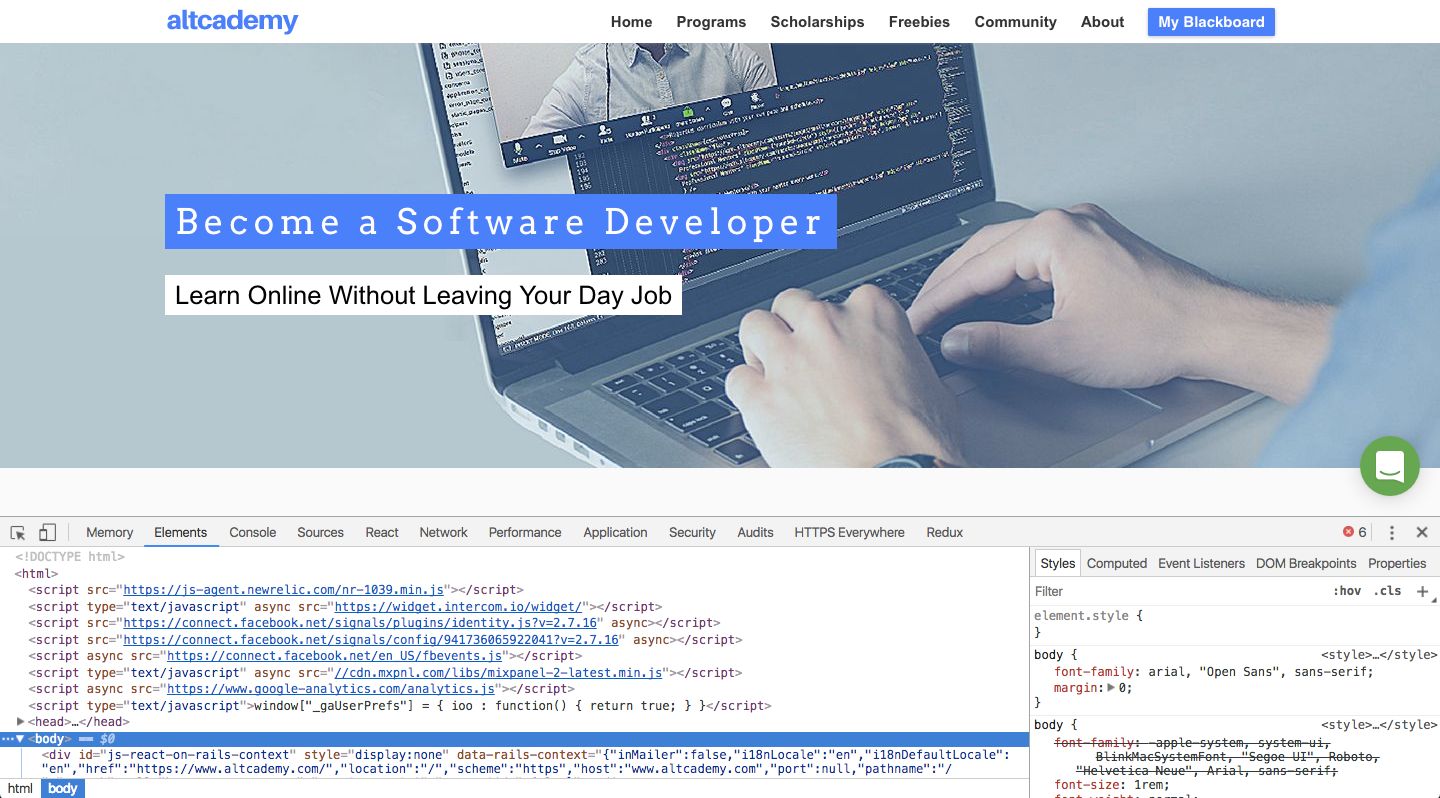
When you open up DevTools for the first time, you are most likely to see the elements panel. If not, just click the Elements tab and it will open up. This is the most useful section of DevTools for this course. The elements panel allows you to inspect the HTML and the CSS of the page you are on. You can even quickly change the HTML or CSS and have it render immediately on the screen. Note that, any changes that you make in DevTools will not be saved to your actual file. But it gives you a much faster response time for testing out different styles. Remember to make the changes in your actual files once you are done tweaking on DevTools.
DevTools window on Chrome broswer
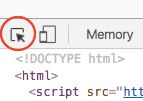
Inspect Tool
Located on the top left corner of the DevTools is the Inspect Tool button, it's a square with a cursor on it. You can use it to select elements on the page and have the corresponding HTML and CSS show up in the DevTools window.
Inspect Tool
After clicking it, just click on any element on the page to select it.
And you will see the HTML and CSS for that element show up in DevTools. The HTML on the left and the CSS on the right.
Editing HTML/CSS
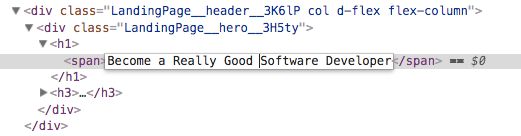
To edit the HTML in DevTools, just double click on the HTML that you want to edit. As an example, I want to edit the text of the banner "Become a Software Developer".
After changing the text, I can either press Enter or click anywhere outside of the text box. The new text will be immediately rendered on the page.
For CSS, you can check and uncheck existing rules, edit existing rules, or add new rules.
Uncheck existing CSS rules
Edit existing rules
Add new rules
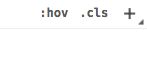
You can even create a new CSS rule with a new selector combination. To do this, click the + button on the top right of the CSS box.
As you learn more HTML and CSS, you will be able to use more advanced features of DevTools.
Google also provides official documentation on how you can use DevTool to help you with development.